
Schedule automated tasks on the panel
Schedules let you automate actions on your server at specific times: daily restart, backup, custom commands, and more. No more manual 6 AM restarts! This guide walks you through creating an automated schedule from scratch, directly from the HebergTonServ panel.
🎯 What’s it good for?
A few concrete examples of what you can automate:
- 🔄 Restart your server every day at 6 AM to free RAM
- 🛑 Stop the server at night when nobody is playing
- 💬 Send a command (e.g.
say Server restarted!) at regular intervals - 🧹 Trigger a cleanup via a custom command before a restart
- ⚠️ Warn players 5 minutes before a restart with an in-game message
📋 Step 1: Log in to the panel
- Go to https://manage.hebergtonserv.com
- Log in with your credentials
- Select your server from the list
📅 Step 2: Open the “Schedules” page
In your server’s left sidebar:
- Expand the Advanced category
- Click Schedules
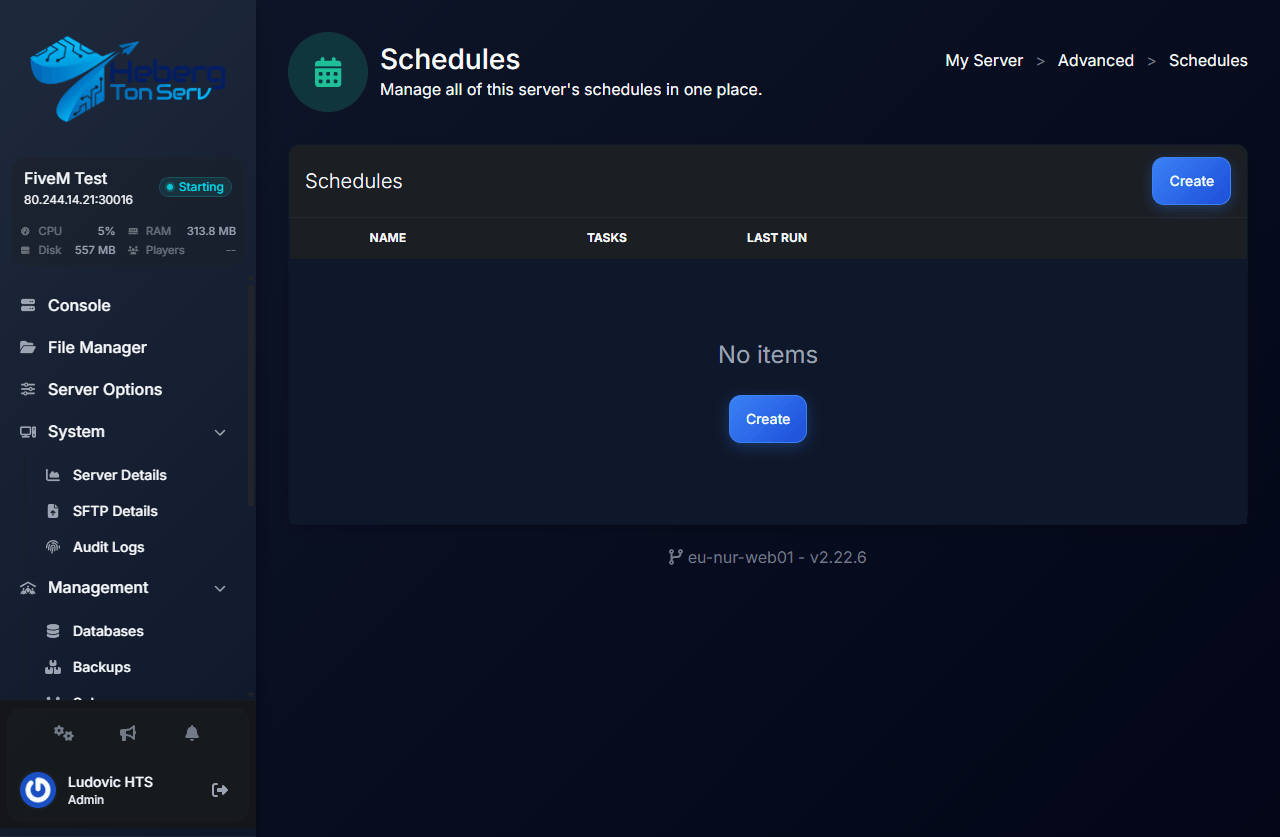
You land on the Schedules page. If you haven’t created one yet, the page just shows “No items” with a Create button.
➕ Step 3: Create a schedule
Click the Create button (top right, or in the middle of the page).
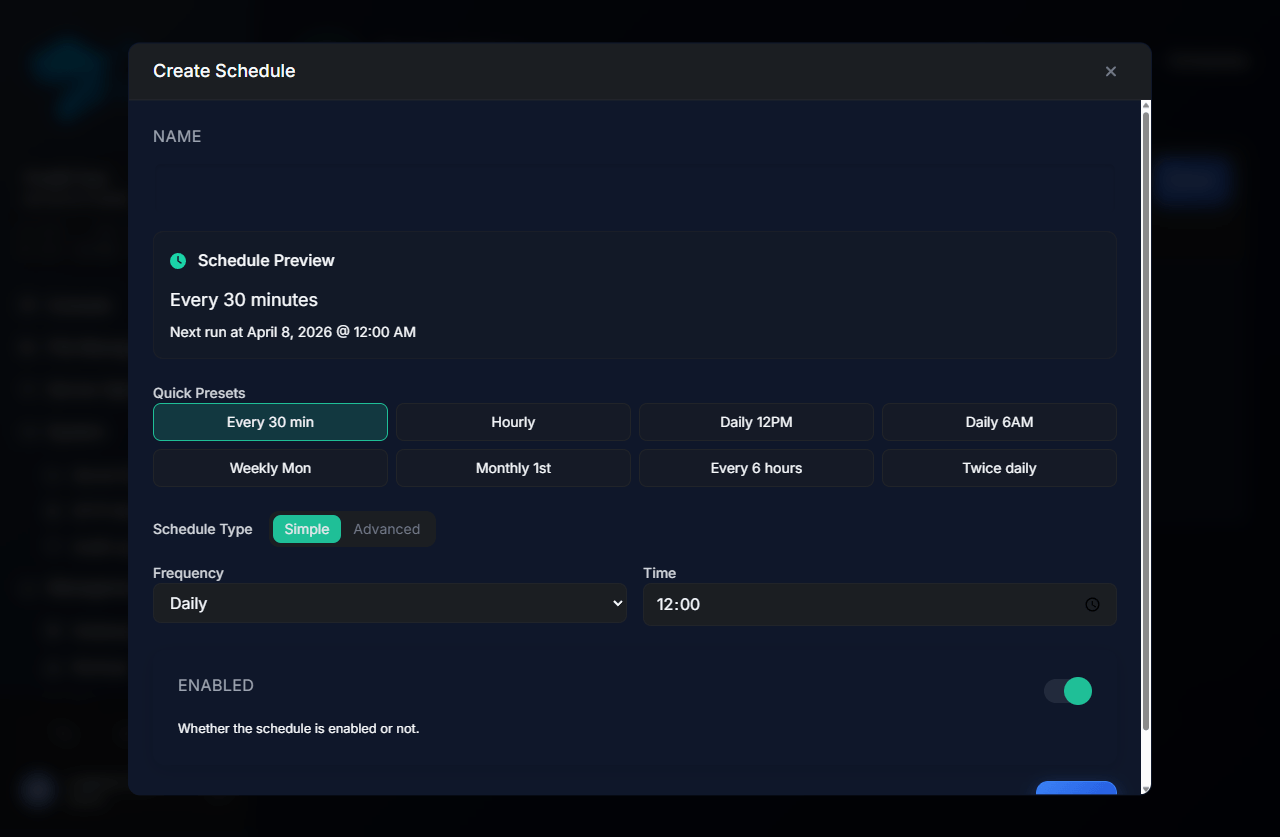
A Create Schedule dialog opens with several fields:
Fields to fill in
- Name: a clear name to identify the schedule later (e.g.
Daily Restart) - Schedule Preview: live preview of when the schedule will run
- Quick Presets: pre-configured buttons for common cases (Every 30 min, Daily 6AM, Weekly Mon, etc.)
- Schedule Type:
- Simple: dropdowns (Frequency + Time), easy to use
- Advanced: cron syntax (Minute, Hour, Day of Month, Day of Week) for more complex cases
- Enabled: leave this ON so the schedule runs
💡 Tip: Always start with a Quick Preset — it’s the easiest way. You can switch to Advanced later if you need precise timing.
Example: daily restart at 6 AM
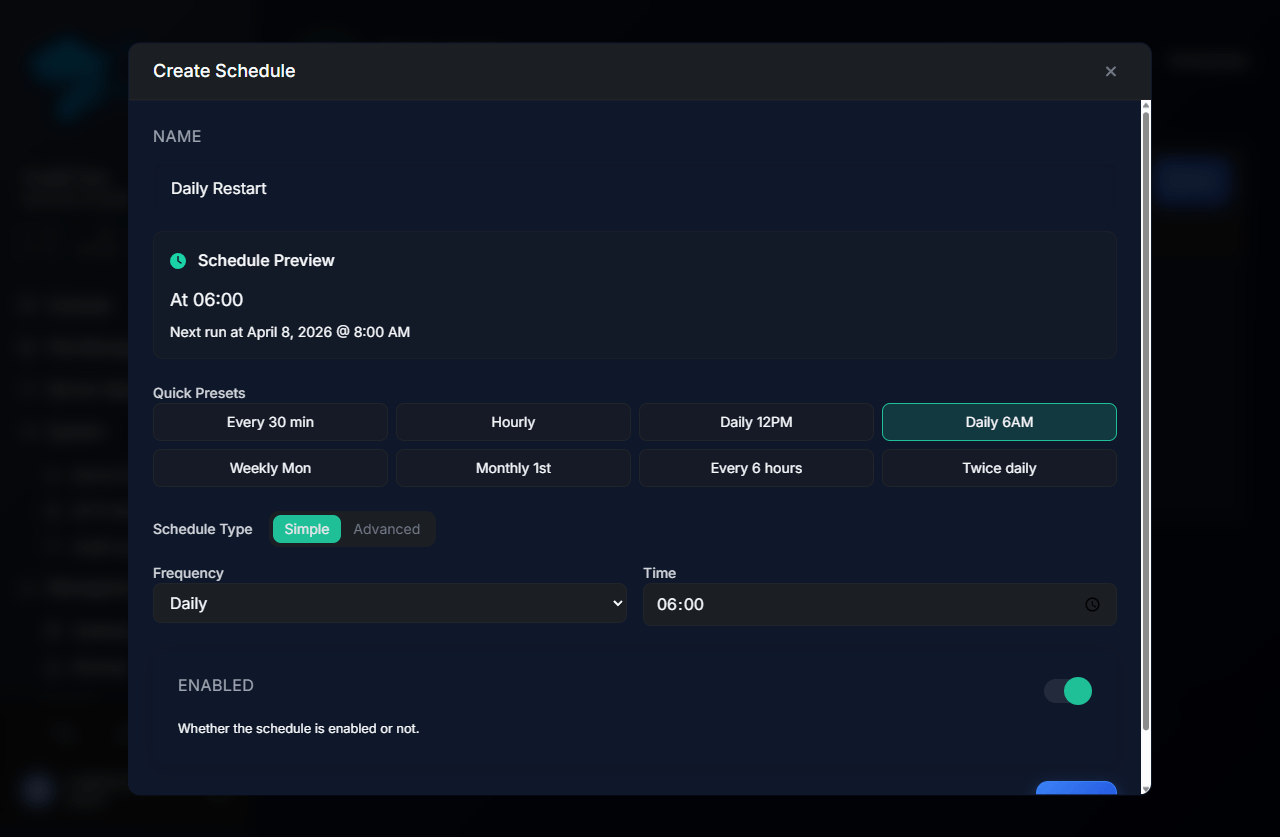
- In Name, type:
Daily Restart - Click the Daily 6AM preset
- Check in Schedule Preview that it shows “At 06:00”
- Leave Enabled ON
- Click Submit
🎬 Step 4: Add a task to the schedule
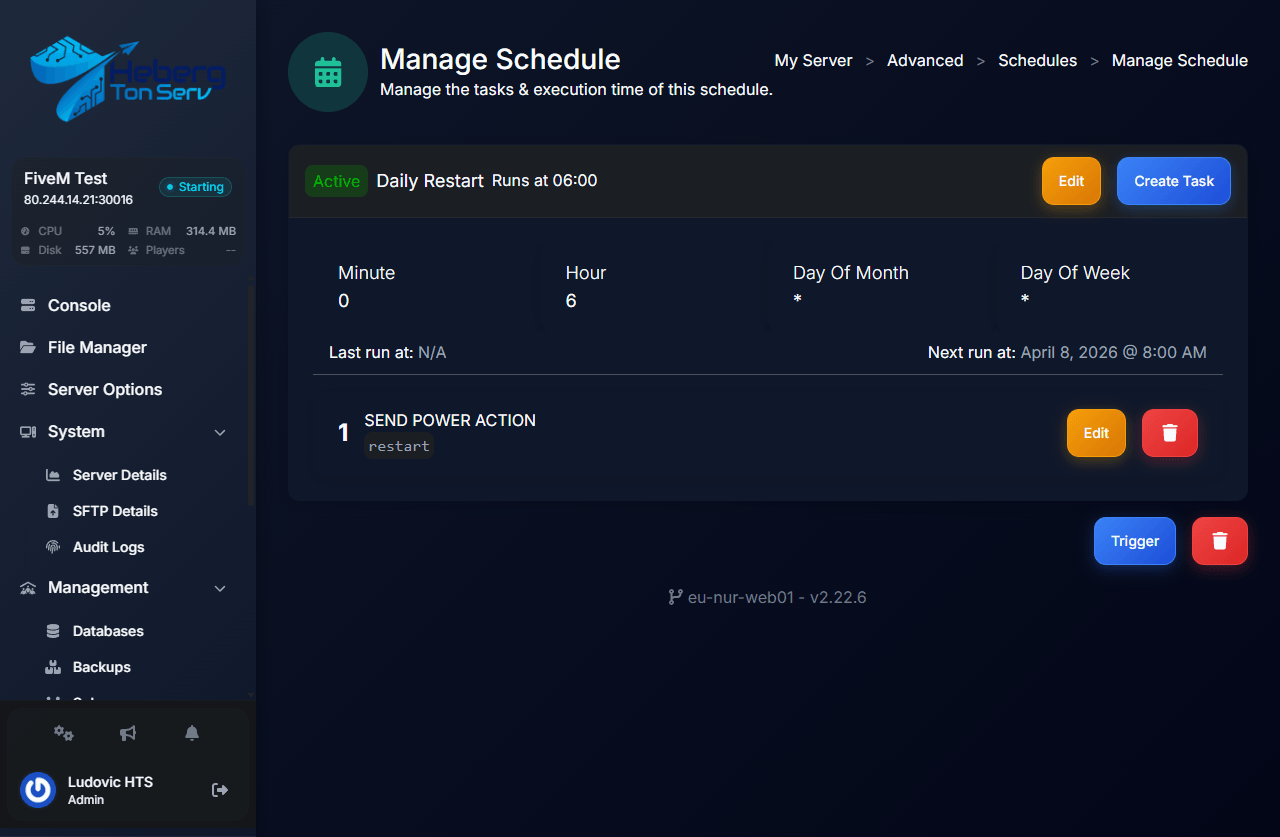
A schedule on its own does nothing — you need to attach at least one task (the action to run). You are automatically redirected to the Manage Schedule page of your new schedule.
Click the Create Task button (top right).
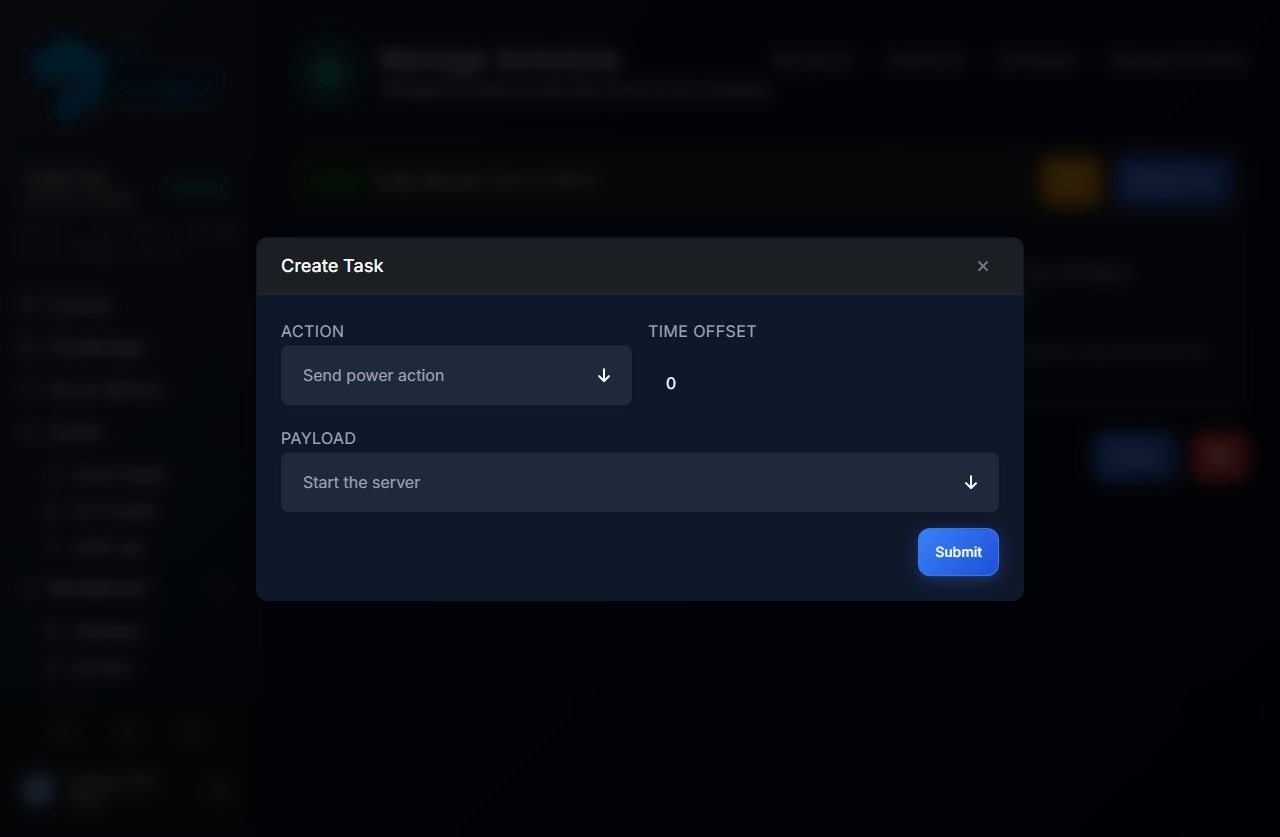
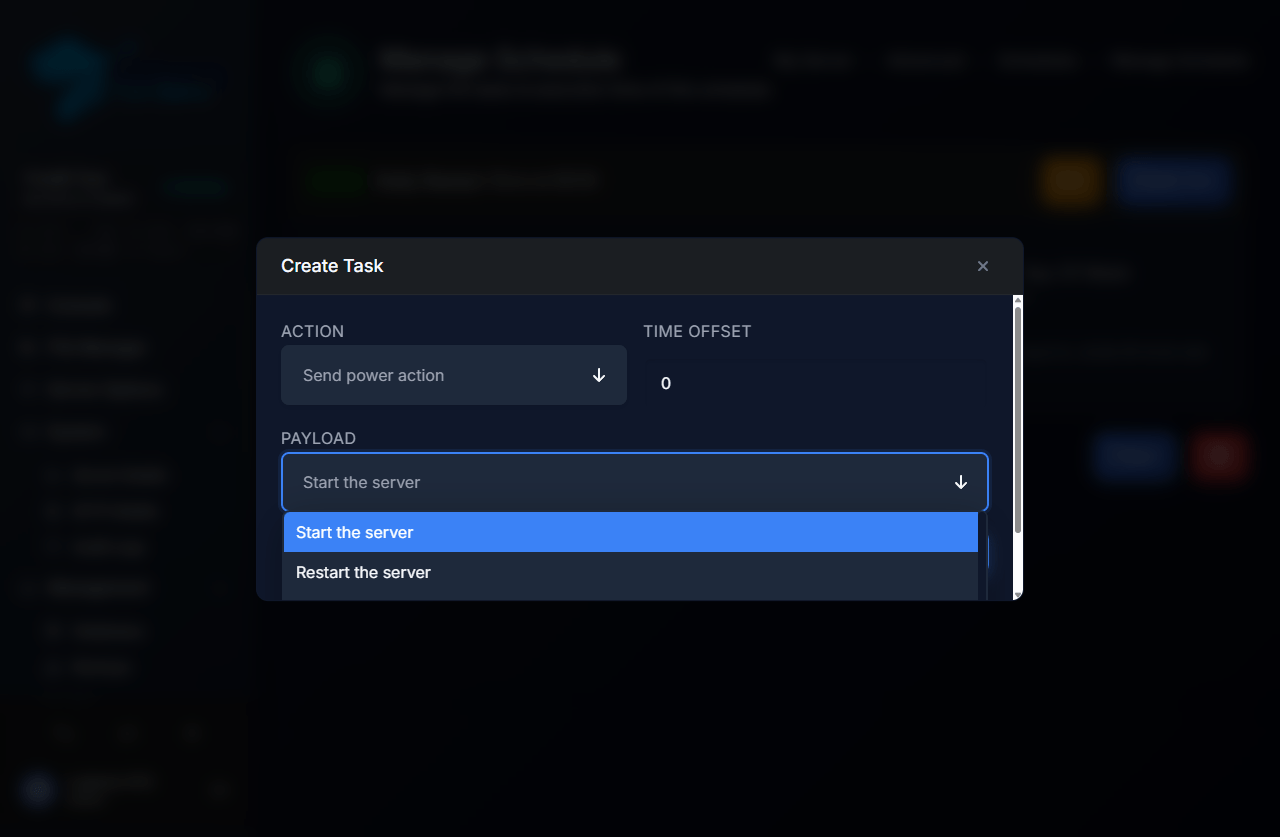
A dialog opens with 3 fields:
Fields to fill in
- Action: the action type
- Send power action — start / restart / stop / kill the server
- Send command — send a console command to the server (e.g.
say Restart in 5 min)
- Time offset: delay in seconds before execution (0 = immediate)
- Payload: the exact action to perform, depending on the type you picked
Example: pick “Restart the server”
In the Payload dropdown, select Restart the server:
Then click Submit. The task now appears inside the schedule:
🔁 Step 5: Chain multiple tasks (optional)
You can add several tasks to the same schedule and use the Time offset to chain them. Example of a clean restart:
- Task 1 (offset
0): Send command →say [SERVER] Restart in 5 minutes! - Task 2 (offset
240): Send command →say [SERVER] Restart in 1 minute! - Task 3 (offset
300): Send power action →Restart the server
Result: when the schedule fires at 6 AM, players get a warning, a second warning 4 minutes later, and the server restarts 1 minute after. Clean.
🧪 Step 6: Test the schedule manually
No need to wait until 6 AM to check it works! On the schedule page, click the Trigger button. All tasks in the schedule run immediately (while still respecting the offsets).
⚠️ Warning: if your task is a server restart, triggering actually stops the server. Warn your players first.
🛠️ Common management
- Edit a schedule: orange Edit button next to the name
- Delete a schedule: red trash icon at the bottom of the page
- Disable temporarily: open the schedule, click Edit, toggle Enabled to OFF. No need to delete it if you only want to pause it.
🚨 Troubleshooting
My task doesn’t run at the expected time
Common causes:
- The schedule isn’t Active (green badge to the left of the name)
- No task was added to the schedule — a schedule without tasks does nothing
- The panel’s timezone isn’t the one you think (check Next run at)
My command doesn’t work
Cause: the command is sent to the server console as-is. Make sure it works manually by typing the same command in the Console tab.
Too many restarts piling up
If you created multiple schedules that trigger at the same time, the server may loop on restarts. On the Schedules page, make sure two different schedules don’t share the same time.
🔗 Useful links
- HebergTonServ panel: https://manage.hebergtonserv.com
- Cron expression builder (for Advanced mode): https://crontab.guru
- Discord support: https://discord.gg/26xerySCfX
✨ Wrap-up
Schedules are one of the most underrated tools on the panel. In 2 minutes you automate the annoying chores (nightly restart, in-game messages, backups…) and forget about them. Start simple with a Daily 6AM preset + a Restart the server task, then add complexity if you need it.
Need help? Our team is available for free on Discord 🚀

