
Install a specific artifact on your FiveM server
Artifacts are the FiveM server (FXServer) builds released by cfx.re. Picking the right artifact matters: some resources require a recent version, while other servers prefer to stay on a stable build. This guide shows you how to switch artifacts directly from the HebergTonServ panel, without touching a single file.
🎯 Which version should I pick?
On the HebergTonServ panel, two builds are highlighted with a badge:
- Recommended ✅ : stable build tested by cfx.re, the safe pick for most servers
- Latest 🚀 : newest release, best if you want the latest features and fixes
- Specific build 🔢 : exact artifact number (e.g.
27805,27794…) if you want to pin an intermediate version
💡 Tip : If a resource requires a minimum artifact (e.g.
fxmanifest.luawithfx_version 'cerulean'), pick at least the Recommended build.
📋 Step 1: Log in to the panel
- Go to https://manage.hebergtonserv.com
- Log in with your credentials
- Select your FiveM server from the list

⚙️ Step 2: Open the Advanced section
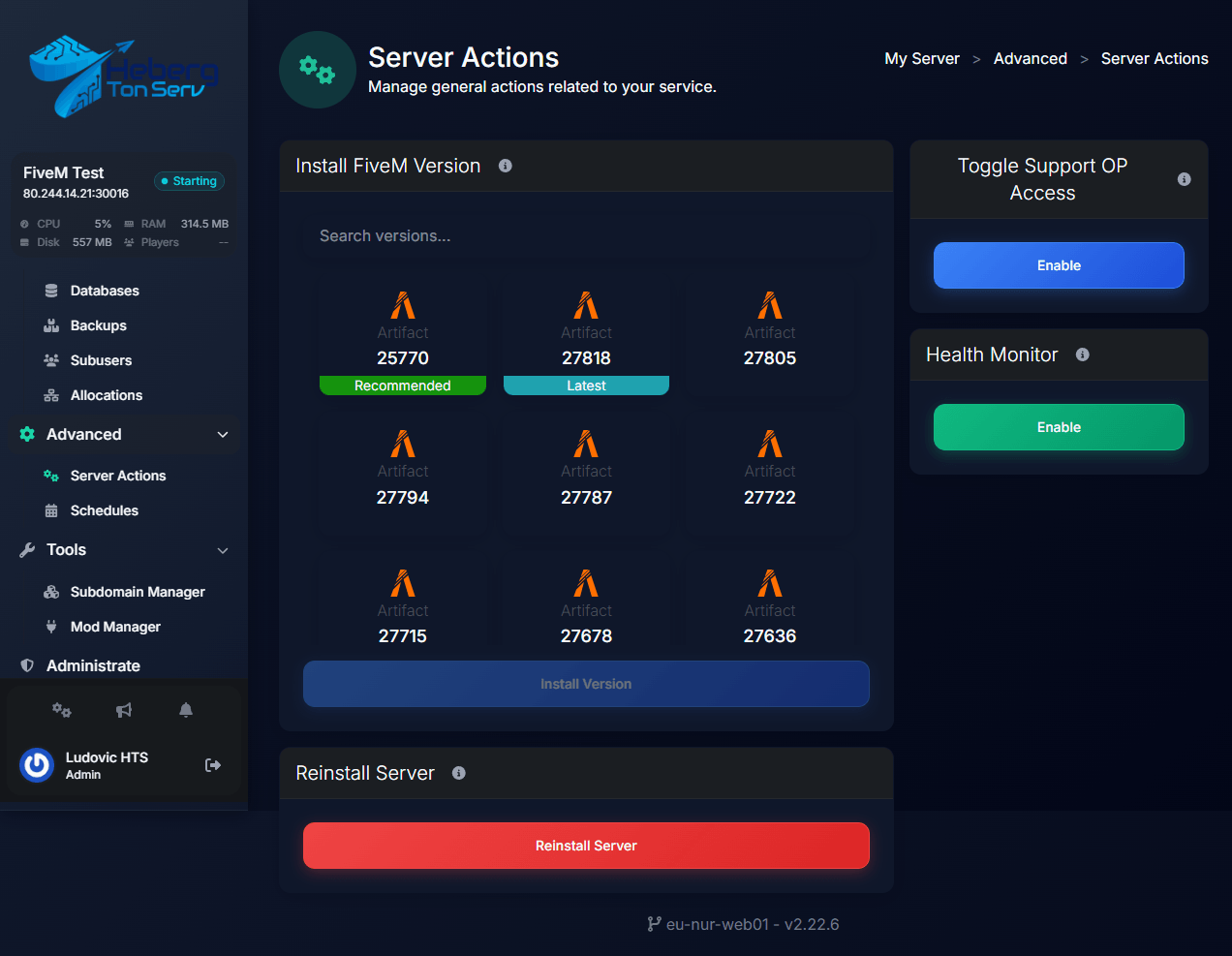
This is where many players get lost: the artifact options are not inside the “Server Options” tab. You need to go through the Advanced > Server Actions entry in the left sidebar.
- In the server menu, expand the Advanced category
- Click Server Actions
- You land on the Install FiveM Version page, with every available build listed
🔧 Step 3: Pick your artifact
Each card represents an available FXServer build. Two cards carry a badge:
- Recommended (green badge) — the stable, recommended build
- Latest (cyan badge) — the newest build released
You can also click any other card to install a specific build (useful if you want to pin an exact version). A Search versions… box lets you quickly locate a build by number.
- Click the card of the build you want — it becomes highlighted
- The Install Version button turns blue and becomes clickable
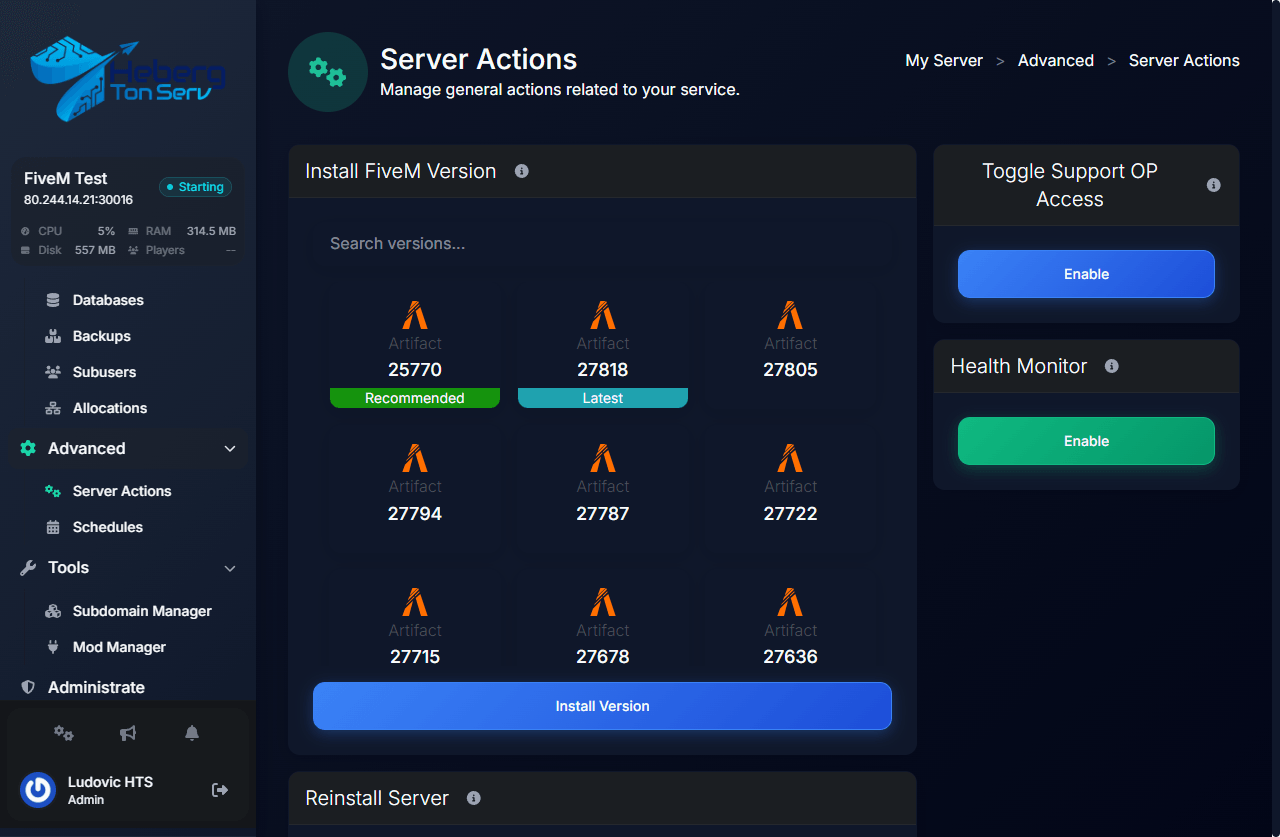
⚠️ Warning : Picking a very recent build (Latest) may break some unmaintained resources. When in doubt, stick with Recommended.
💾 Step 4: Run the installation
- Once the card is selected, click the Install Version button at the bottom of the section
- The panel automatically downloads and sets up the chosen artifact
- Go back to the Console tab to follow the server restart
On restart, you’ll see lines like this in the console:
Downloading FXServer artifact...
Extracting...
FXServer started.
✅ Step 5: Verify the installed version
Once the server is running, type this command in the panel console:
versionThe server will print something like:
FXServer-master SERVER v1.0.0.25770 win32The number at the end (25770) matches the artifact you just installed.
🚨 Troubleshooting
The server no longer starts after changing artifact
Likely cause: a resource isn’t compatible with the build you picked.
Fix:
- Go back to Advanced > Server Actions
- Select the Recommended build again
- Click Install Version
- Update the faulty resource before trying a newer build again
”Artifact not found” or download stuck
Cause: the build can’t be fetched from cfx.re.
Fix: retry with the Recommended build, or check the official build list: https://runtime.fivem.net/artifacts/fivem/
My resources throw fx_version errors
Cause: your artifact is too old.
Fix: switch to Latest (or a recent build) and restart.
🔗 Useful links
- HebergTonServ panel: https://manage.hebergtonserv.com
- FXServer artifact list: https://runtime.fivem.net/artifacts/fivem/
- FiveM documentation: https://docs.fivem.net/
- Discord support: https://discord.gg/26xerySCfX
✨ Wrap-up
You now know how to switch FXServer versions on your FiveM server in just a few clicks from the Server Actions page of the HebergTonServ panel. Always test your resources after changing artifact, and stick with Recommended if you don’t have a specific reason to move up.
Need help? Our team is available for free on Discord 🚀

